Query Google Analytics with Natural Language using Claude
GA on the web sucks. Now you don't have to use it.


Intro
Great news. Google Analytics is obsolete. Now all you've gotta do is speak to the data. The Google Analytics platform is not obsolete – storing pageviews & clicks is as important as ever. But it sure seems like the website is dead. Good riddance.
In this post I'll share how you can chat with your Google Analytics data using Claude Code and the GA MCP.
Example
I work on the side helping businesses manage web analytics and data warehouses. One client I work with reached out the other day asking about a June traffic spike. They were looking at GA4 on web, which has become increasingly unusable as Google has pushed users into Data Studio (fka Looker). So I opened Claude and typed: "Explain the June spike."
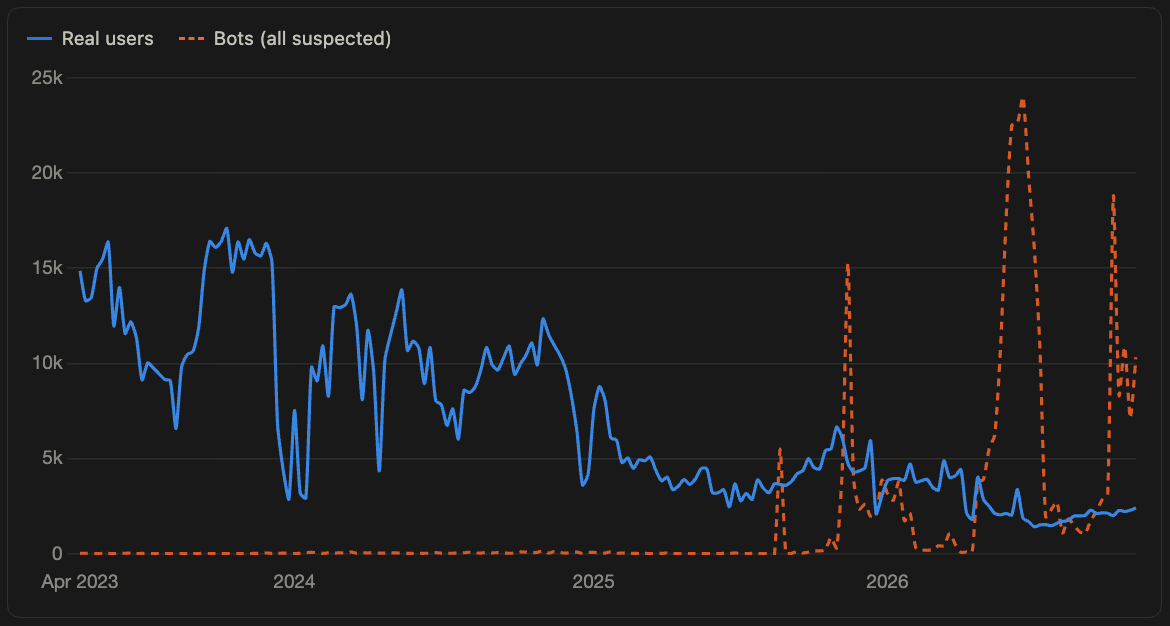
It took about 90 seconds for my agent to produce the chart above and summarize the findings.
The June spike was a bot crawling the site, not real visitors. I'm assuming the webmaster means June 2026, the largest spike in the site's history.
The bot ran headless Chrome (a browser with no screen, run by software) from cloud data centers, mainly Lanzhou in China and Singapore. In June it made up about 90% of daily users (3,148 of 3,500 a day on average) and 78% of page views. It ramped up from 16 May, ran almost continuously from 31 May to 17 July, and switched off abruptly on 18 July. Real visitors didn't spike: June had about 9.7k human users, flat versus May (+1%) and down 25% on June 2025.
My ga4-analyst saved detailed reports, and asked if I wanted to send the result to the client. I replied yes, it showed me a draft, I confirmed, and the email was sent. This kind of analysis used to take me hours.
How it works
ga4-analyst is a Claude Code agent that follows instructions stored on my computer and uses a project-scoped Google Analytics MCP connection to invoke Google Analytics APIs. The agent is connected to GitHub for version control, and to Gmail so I can send reports to myself or the client.
The setup files are public on GitHub: samthebrand/ga4-analyst. The reports are saved in a private repo.
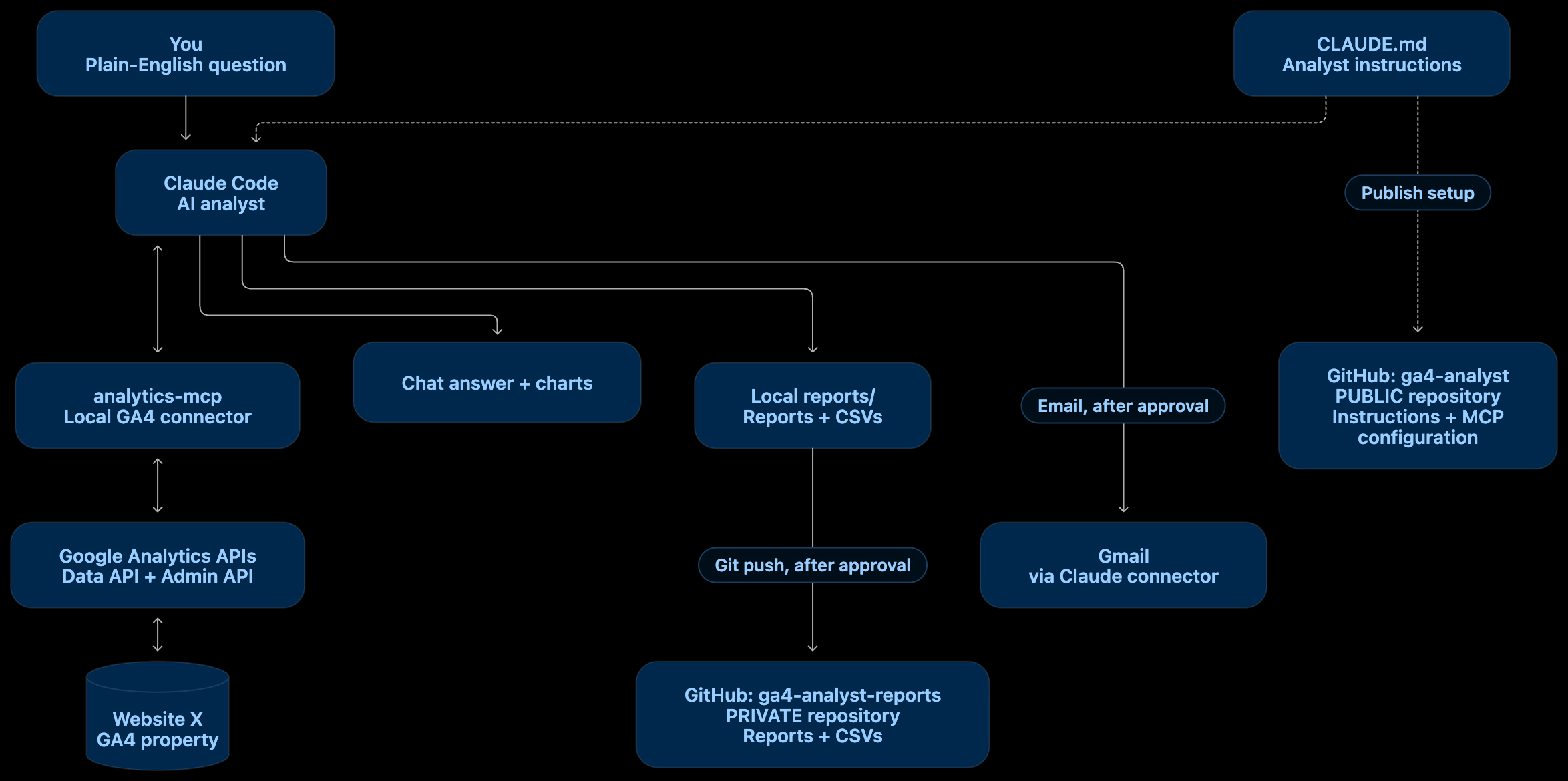
GA4-analyst is an autonomous agent
It interprets human language and turns your words into a goal. The agent makes its own decisions about how to approach that goal, that's why it's autonomous. It plans based on the constraints detailed in the markdown files, and then it executes. It executes again and again, checking the result against its vast subject matter expertise. Claude knows statistics, web analytics, and root cause analysis way better than me.
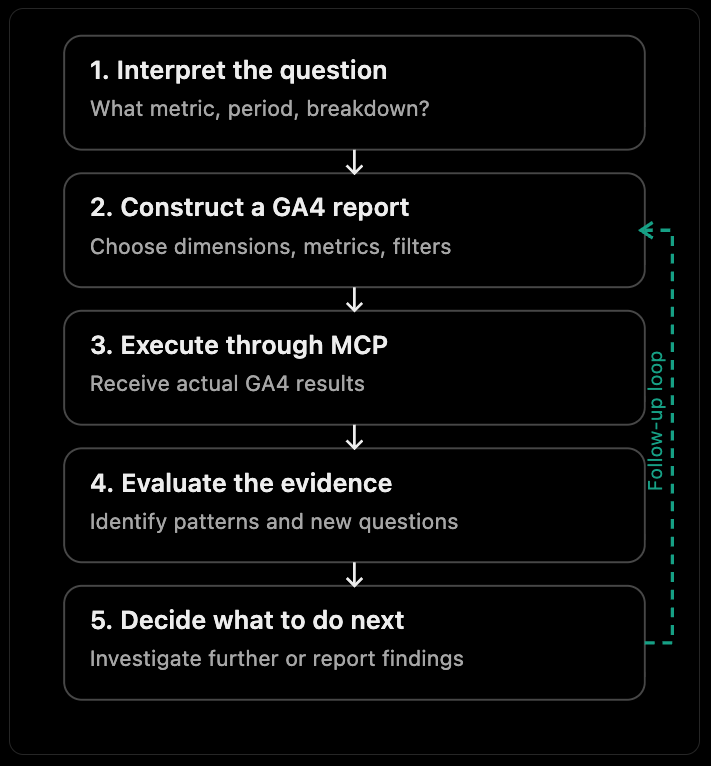
This agent knows Google Analytics
I'm currently using Opus 5.5 which is pre-trained on the vast knowledge of the internet, so it knows common approaches to querying the GA4 schema. The agent doesn’t need a golden set of queries because the LLM has memorized articles like this one which I wrote 2 years ago (ahem, eons ago).
And the agent has access to the GA4 MCP server, an open instruction book exposing the capabilities and pipes of 2 Google Analytics APIs: the GA Data API and the GA Admin API. The MCP server tells the LLM how to make structured requests for dimensions ( sessionDefaultChannelGroup, landingPage, screenResolution), metrics (activeUsers, engagementRate, keyEvents), date ranges and filters. The GA MCP has a schema lookup tool to identify custom events (get_custom_dimensions_and_metrics), and it can call list_property_annotations to help the LLM navigate known site or tracking changes.
It's not fully autonomous
The agent is bound by the constraints I’ve written into the markdown file which tell it how to behave. The file sets limits on the number of reports & rows which the agent might produce during a single investigation.
It can make mistakes
Typically the agent will follow the instructions, but on occasion it might misbehave. The agent has a mind of its own and it’s hellbent on accomplishing its goal. It’s hard not to anthropomorphize when talking about these things. So the agent may break the 8 report limit or leak PII even when instructed not to do so. This can be a significant problem in some business environments, so it's important to check your work depending upon the stakes. The agent will not break other constraints such as read-only access to GA4 or API quotas which are enforced by the tools that the agent can call.
System instructions are key
The agent's guidelines live in the CLAUDE.md instructions. This is where you can be opinionated, store idiosyncracies or style pointers, and get clear on how you want your agent to behave beyond the general behavior stored in the foundation model's pre-training.
My file makes it very clear that I want the agent to:
- Compare against baselines: previous period, same period last year, trailing average.
- Test competing explanations and label each finding as evidence or hypothesis, correlation or causation.
- Follow a data-quality checklist: end date ranges at yesterday (the last 24–48 hours are still processing), report
(not set)and(other)shares, flag thresholding, watch for bots and for step changes that line up with tagging changes. - Prioritize privacy: totals only, no user IDs, avoid groups smaller than 10.
- Output: short summary, metrics table, Mermaid chart, evidence vs. hypotheses, caveats, next steps, saved as a Markdown file in
reports/.
Monitoring costs
This agent is cheap. Google charges nothing for the GA4 reports. I'm on Claude's Pro plan which costs about $20 per month. I ran 7 queries which produced 42 GA reports which used only about 5% of my weekly limit.
Set it up yourself
You don't need to know SQL or Python. Claude Code can handle most of the setup. All you've got to do is chat.
Step 1: Install Claude Code
- Download Claude Desktop and open the Code tab.
- Create a new project folder called
ga4-analyst. This folder will hold your analyst's configuration, instructions, and reports.
Step 2: Google Analytics access
You'll need:
- A Google account with at least Viewer access to a GA4 property.
- A Google Cloud project where you can enable APIs.
- Permission to install software on your computer.
You'll also need to configure Google authentication. Claude can guide you through this.
Step 3: Give Claude instructions
Open your ga4-analyst project in Claude Code and paste this prompt:
Build a standalone Google Analytics 4 AI analyst in this project.
Use Google's official Google Analytics MCP server, following these instructions: https://developers.google.com/analytics/devguides/MCP
SetupCheck my computer for the required software (Python, uv, and Google Cloud CLI).Help me install anything that's missing.Help me enable the Google Analytics Data and Admin APIs in my Google Cloud project.Walk me through Google OAuth authentication with read-only Analytics access.Configure the MCP server for this project using.mcp.json.Find my available GA4 properties and ask me which to use.Test the connection with a simple report.
Analyst behavior
Create aCLAUDE.mdfile instructing Claude to:Translate natural-language questions into GA4 reports.Inspect results for trends, anomalies, and unexpected changes.Independently run follow-up reports to investigate findings.Compare results against historical periods.Distinguish evidence from hypotheses.Limit investigations to eight data report requests.Produce concise reports with charts and supporting evidence.Save reports and CSVs in areports/folder.
Safety
Use read-only access. Never modify Google Analytics settings, store credentials in the project folder, or share reports externally without my approval.
Work through the setup step by step. Ask for approval before installing software, changing Google Cloud settings, or connecting additional services.
Step 4: Follow Claude's lead
Claude will check your computer, help install the required software, and guide you through Google Cloud.
You'll need to complete a few steps yourself, including:
- Creating or selecting a Google Cloud project.
- Enabling the Google Analytics Data API and Admin API.
- Creating OAuth credentials (a Desktop app client).
- Signing in with the Google account that can access your analytics property.
Claude will then configure the connection and test it.
Step 5: Start asking questions
Once connected, you can ask things like:
- "Show me weekly website traffic for the last three years."
- "Why did traffic spike in June?"
- "Which acquisition channels are growing fastest?"
- "Are we attracting more engaged visitors than last year?"
Claude can run several reports, investigate what it finds, and write up its conclusions without requiring you to specify every query.
Step 6: Connect GitHub and Gmail
I also configured my analyst to:
- GitHub: Publish reports and underlying data to a private repository.
- Gmail: Email report summaries to selected recipients.
These connections are optional. You can ask Claude to configure them after your GA4 analyst is working.
That's it. You've built an AI analyst that can query Google Analytics, investigate the results, and produce written reports using natural-language questions.
...
Have questions or anything to add? Leave a comment or say hi.
Further reading...
 Sam Brand

 Sam Brand
 Sam Brand
 Sam Brand